




Unlock a Business Bank Account
Unlock a Business Bank Account
If your business bank account is locked, Expensify pauses reimbursements and payments to prevent failed debits. You’ll need to request an unlock before the account can be used again.
Why your business bank account is locked
Bank accounts may be locked after a failed debit attempt or a bank-side restriction. Common reasons include:
- Insufficient funds at the time of reimbursement
- Your bank blocked the debit attempt
- The bank account isn’t enabled for ACH direct debits
When a bank account is locked, you’ll see a Locked badge on the account in:
- Settings > Wallet in the Bank accounts section
- Workspaces > [Workspace Name] > Workflows > Payments
You’ll also see an alert in the Time sensitive section on Home with a Fix button that guides you through the unlock process.
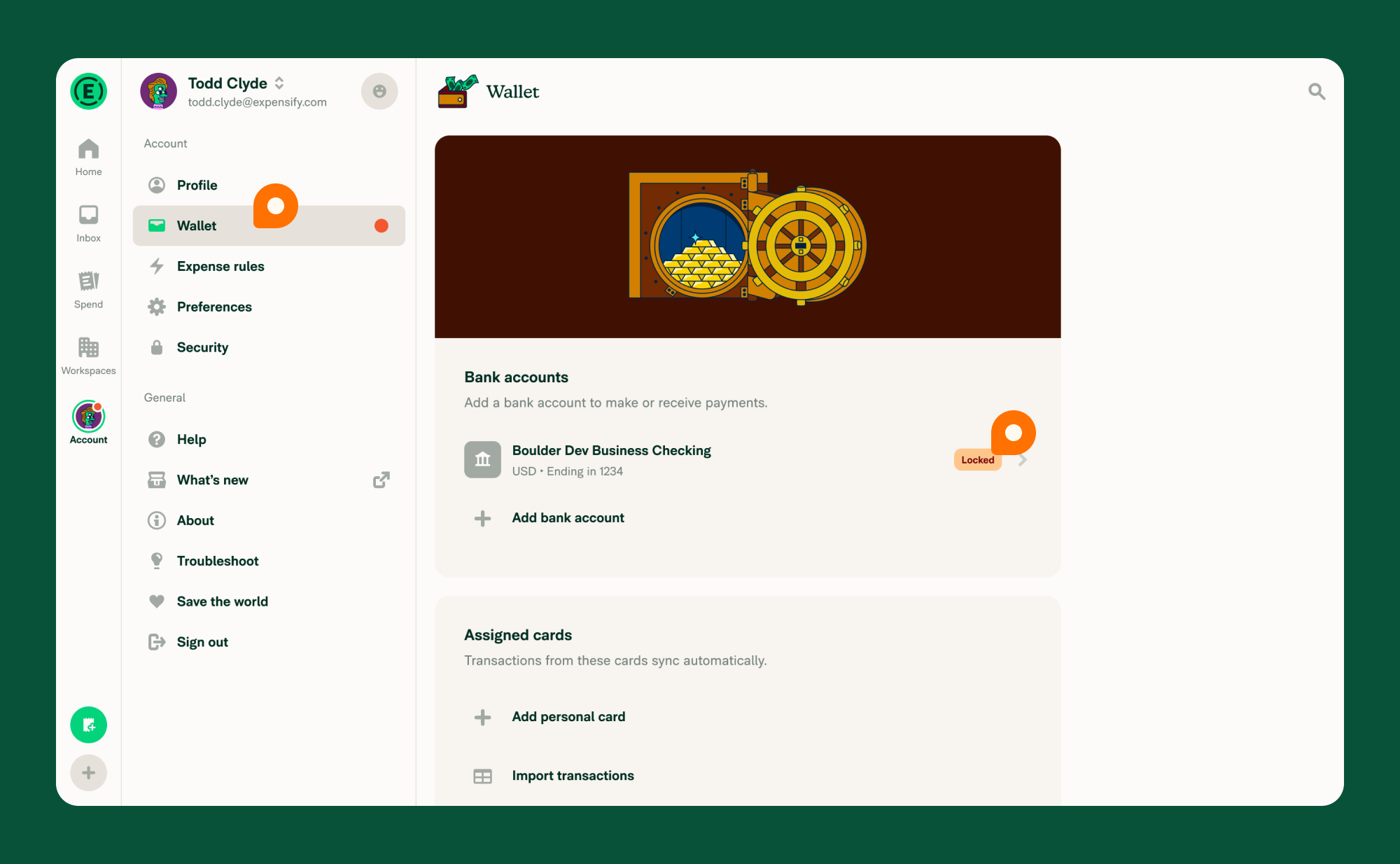
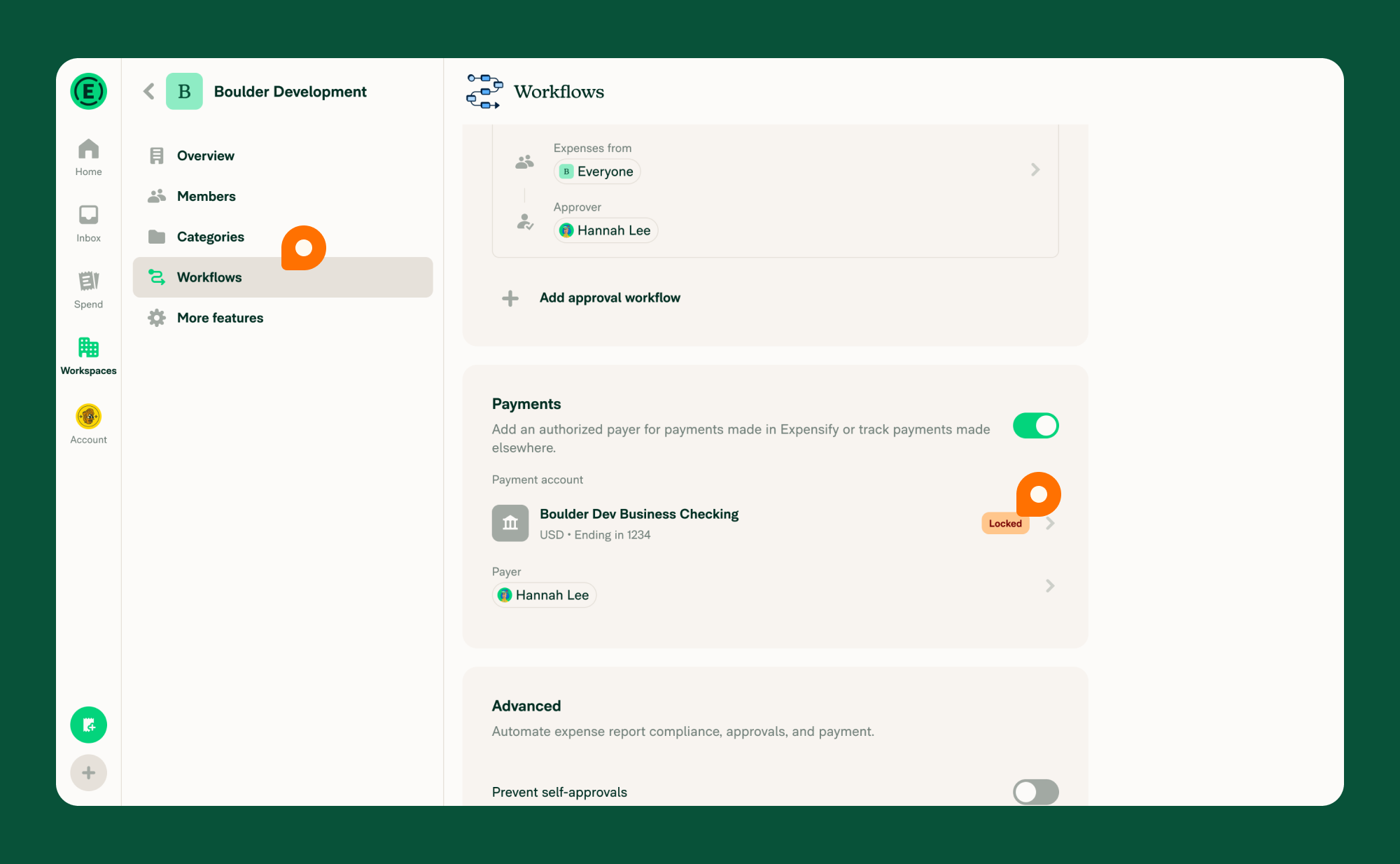
How to unlock a business bank account
You can start the request from Home, Wallet, or a workspace’s Workflows. The steps are the same on web and mobile.
For a workspace’s bank account, only the reimburser — the workspace member set to pay — can request the unlock. Other Workspace Admins don’t see the Time sensitive alert on Home, and Workflows offers them no Unlock option. If you’re not the reimburser, ask them to follow these steps.
- Do one of the following:
- On Home, click Fix on the locked bank account alert in the Time sensitive section, then skip to step 3.
- Go to Settings > Wallet and find the account in the Bank accounts section.
- Go to Workspaces > [Workspace Name] > Workflows and click the Payments tab. The bank account is only shown on the Payments tab.
- In Wallet or Payments, click the bank account with the Locked badge, or click Unlock next to it.
- Review the request Expensify posts in your Concierge chat.
Note: Workflows remembers the last tab you used. The first time you open it, it starts on Submissions, so you need to click Payments. After that, returning to Workflows takes you straight back to Payments and you can skip that click.
There is no extra confirmation step. Expensify sends the request as soon as you click and opens your Concierge chat. The request appears there as a message, so you don’t need to write anything. Concierge will walk you through the next steps, or confirm when your account is ready to use.
What happens if you request an unlock more than once
Expensify sends only one unlock request per bank account. While your request is with Concierge, clicking Fix, Unlock, or the locked bank account again shows a Request already submitted message instead of sending a duplicate.
Click Got it to dismiss the message. Your place in the queue is unaffected — clicking again does not speed up the unlock.
If the request hits an error and fails to send, Expensify does not record it. Clicking Fix or Unlock again sends a fresh request rather than showing the Request already submitted message. Going offline does not count as a failure — the request is queued and sent when you reconnect.
What happens after you request to unlock a business bank account
Unlocking is tied to your bank’s processing timeline:
- Expensify must wait for the failed debit attempt to fully return from your bank.
- Once returned, Concierge will notify you.
- You confirm whether you’d like Expensify to retry the debit.
- After a successful debit, the account unlocks automatically.
Expensify cannot manually retry debits until the bank returns the original attempt.
How to prevent your business bank account from locking again
Ask your bank to allow ACH debits from the following originators:
For reimbursements via Expensify:
- ACH Company IDs: 1270239450, 4270239450, 2270239450
- ACH Originator Name: Expensify
For bill payments via Stripe:
- ACH Company IDs: 1800948598, 4270465600
- ACH Originator Name: expensify.com
For international reimbursements via CorPay:
- ACH Company IDs: 1522304924, 2522304924
- ACH Originator Name: Cambridge Global Payments
FAQ
Will I be notified when my bank account is locked?
Yes. You’ll see a Locked badge in Wallet and on the Payments tab of Workflows, and Concierge will message you.
Can I delete a locked bank account?
No. Locked accounts can’t be deleted until they’re resolved and unlocked.
Why hasn’t my account unlocked yet?
The failed debit may still be processing with your bank. Concierge will notify you as soon as it can be retried.
Why do I see the Request already submitted message when I click Fix or Unlock?
You’ve already requested an unlock for that bank account. Expensify blocks duplicate requests, so Concierge still has your original request. Click Got it and wait for Concierge to reply.
Can I submit another unlock request to speed things up?
No. Only one request per bank account is sent, and repeat clicks show the Request already submitted message instead. Unlocking depends on your bank returning the failed debit, which a second request can’t change.


